
If you source the same product from multiple suppliers — maybe one is local with faster shipping and another is overseas with better pricing — you've probably run into one of Shopify's limitations: you can only assign one vendor per product.
This doesn't mean you're stuck. It just means you need a system for tracking alternate suppliers outside of Shopify's native product fields. Here's how to handle it.
Why Multiple Suppliers Matter
Having a single supplier for each product is fine until it isn't. Supplier issues are one of the most common causes of stockouts — a factory delay, a shipping disruption, a quality problem. When your only source goes dark, your product goes out of stock.
Maintaining relationships with alternate suppliers gives you:
- Backup options when your primary supplier can't deliver
- Better negotiating leverage — knowing you have alternatives strengthens your position
- Faster restocking for urgent orders — a local supplier might ship in 3 days while your main supplier takes 3 weeks
- Price comparison — costs change over time, and having multiple quotes helps you make smarter purchasing decisions
The Shopify Limitation
In Shopify's product editor, each product has a single "Vendor" field. This is great for basic organization and filtering, but it doesn't support the reality that many merchants source from multiple vendors.
Some merchants work around this by:
- Keeping a separate spreadsheet with supplier information (workable but disconnected from your store data)
- Using Shopify product tags (messy and limited)
- Using metafields (technically possible but complex to set up and hard to use day-to-day)
None of these are ideal. What you really want is supplier management integrated into your purchasing workflow.
How Sensible Forecasting Handles Multiple Suppliers
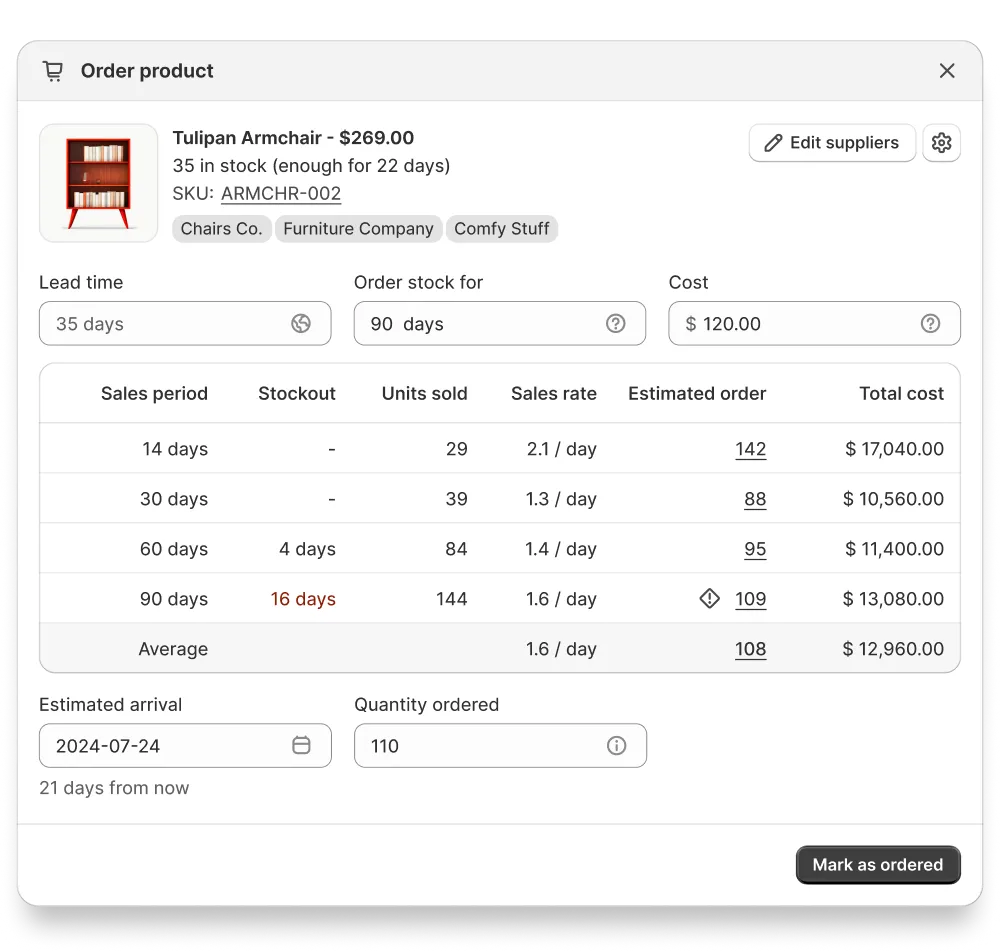
Sensible Forecasting lets you add alternate suppliers directly in the product detail view. Here's how it works:
- Open the order view for any product
- Click the Edit suppliers button
- Enter a supplier name or select an existing one from your list
- Save — the alternate vendor now appears below the product name on the Products page
The key benefit is that these supplier tags are clickable. Tap on a vendor tag and it instantly filters the Products table to show only products from that supplier. This turns a complex question — "What do I need to order from Supplier X?" — into a one-click answer.
Building Efficient Purchase Orders by Supplier

Multi-Supplier Advantage
Filter products by supplier in one click, see all items from each vendor, and build complete purchase orders in minutes instead of hours.
Here's a practical workflow for creating purchase orders when you work with multiple suppliers:
1. Filter by Supplier
Click on a vendor tag in the Products table. You now see every product you source from that supplier, sorted by reorder urgency. Products that need ordering first are at the top. This filtered view is the foundation for building efficient purchase orders by supplier.
2. Review and Adjust Quantities
Check the recommended order quantities for each product. The app calculates these based on your sales rate, lead time, days of stock, and safety stock settings. Adjust if needed — maybe you want to round up to meet a minimum order quantity from this supplier.
3. Bulk Edit and Mark as Ordered
Use the bulk edit feature to set quantities for multiple products at once and mark them all as ordered. This moves them to the Ordered tab, keeping your active product list clean.
4. Export for the Supplier
Export the filtered list as a CSV or XLSX file. This gives you a clean spreadsheet you can email directly to your supplier or paste into their order form.
5. Repeat for the Next Supplier
Clear the filter, click on the next vendor tag, and repeat. What used to take an hour of cross-referencing spreadsheets now takes a few minutes per supplier.
Tips for Managing Supplier Relationships
Track Lead Times Per Supplier
Different suppliers have different lead times, and these often change seasonally. In Sensible Forecasting, you can customize lead times per product in the detail view. If a product has multiple suppliers with different lead times, set the lead time based on the supplier you're currently ordering from. Learn more about how to calculate and set lead times to ensure your forecasts account for supplier differences.
Keep Supplier Information Centralized
The more places you store supplier data (a spreadsheet here, an email thread there, a note on your phone), the harder it is to make quick decisions when you need to reorder. Use the vendor management in your forecasting tool as the single source of truth.
Review Suppliers Quarterly
Once a quarter, review your supplier list. Are lead times still accurate? Have prices changed? Is there a new supplier worth evaluating? A quick quarterly review prevents small issues from becoming big problems.
Manage Suppliers and Plan Purchase Orders in One Place
Sensible Forecasting lets you add multiple vendors per product and filter by supplier for efficient ordering.
Start 30 Days Free Trial →